This tutorial is designed to guide new users step by step through the complete workflow in Talsim — from launching the application to building, running, and analyzing a basic hydrological model.
You will learn how to:
•Launch the Talsim Client
•Set up a new model with commonly used System Elements
•Parametrize the model
•Run simulations
•Visualize and interpret the results
The tutorial is based on a simple example model that includes the most frequently used elements: Point Source, Sub-Basin, Transport Reach, and Storage. It also introduces a basic operating plan using Element States to demonstrate how rules can be integrated into the simulation.
You can follow the tutorial in two ways:
•Step-by-step from scratch: Start with an empty project and build everything yourself by following the instructions and using the provided data (Demo_data.xlsx).
•Using the prepared demo model: Download the fully configured model including simulation results (⏳ Coming soon: Demo.zip) and explore specific parts of the workflow that interest you. This is useful if you want to repeat or review certain steps without building the full model.
Each section includes clear written instructions, the first sections also corresponding screencasts, making it easy to follow along. Any required data will be provided at the point where it is needed.
This tutorial is a great way to get hands-on experience with Talsim and understand the typical workflow from model setup to results.
First steps with Talsim
|
To run Talsim, you need to open or create a project. If you're starting from scratch, follow these steps to create a new project: 1.Double-click Talsim.exe to start the application. 2.Wait for the Talsim start screen to appear. 3.Click Create a new project. 4.Navigate to the directory where you want to store your project. 5.Select the folder and click Select folder 6.In the next window, enter a project name — e.g. Demo — and click Create & Open Project. 7.The Login window appears — close it for now. ✅ The new project Demo has been created and appears under Open a recent project on the Talsim start screen. ✅ A new database file named Demo.db is created in the selected directory, along with three standard folders for storing additional project data: •Demo_data – for output files •Demo_gis – for spatial data •Demo_zre – for time series data Create a new database
|
 | Open the project and log in to your Talsim server with the Demo customer |
|
The Scenario Tree on the left side of the Talsim main window provides a structured view of your project. In this tutorial, you will first create a folder, then add a scenario within it. To create a folder:1.Find the Scenario Tree, right-click the project name (Demo). 2.In the context menu, click Create Folder. 3.In the pop-up window: oEnter the project name: Example Models oEnter a description: Collection of Talsim models for documentation & training 4.Click Add. ✅ The new folder Example Models now appears in the Scenario Tree under your project Demo. To create a scenario:1.Right-click the folder Example Models. 2.In the context menu, click Create Scenario. 3.In the pop-up window: oEnter the scenario name: Getting started oEnter a description: Simple model of a fictitious water resources system including most commonly used system elements and a simple operating plan 4.Click Add. Expand the folder Example Models by clicking the small triangle next to it. ✅ The new Scenario Getting started now appears beneath the folder in the Scenario Tree. To open the scenario:1.Right-click the scenario Getting started. 2.In the context menu, click Open. ✅ Your Scenario is now active and ready for model setup. ✅ A green checkmark next to the scenario in the Scenario Tree indicates it is currently active. ✅ The main workspace now shows a tab labeled Getting started, along with toolbars that allow you to create the flow network, navigate the map, and adjust the view.
Create a folder, create a scenario and activate the scenario
|

Preparing the map (optional)
|
Adding a map or satellite imagery as a background to your system plan can help you better orient your model geographically. Talsim offers two map options: •Open Street Map •World Imagery (satellite view)
To load OpenStreetMap as a background:1.In the toolbar of your active scenario, click the Layers Button to expand 2.In the expanded Tree View, check Maps ✅ The OpenStreetMap will now appear as a background to the map of your scenario. Expanding Maps you will find OpenStreet Tile Layer checked. To navigate the map to Darmstadt, Germany:1.Zoom in/ out using the mouse wheel. 2.Pan the map holding the Space Bar and dragging with the mouse. 3.Repeat until the map has the desired extent. ✅ The area around Darmstadt is shown.
|


| Import shapes of the catchment, the stream and the water infrastructure |
|
You can download the shapefiles representing the fictitious elements of the water resources system — catchment, stream, reservoir, and water user — here: Shapes.zip. Unzip the files to any location on your computer. To load the shapefiles into the map:1.Click the Import Shape Button 2.Navigate to the directory where you extracted the shapefiles 3.Select the file A001.shp and click Open ✅ The Catchment-shape is now displayed on the map. 4.Repeat the steps above for the files Stream.shp, T001.shp and U001.shp. ✅ All four shapes will now appear on the map. Under Layers ⮕ Shapes each Shape has its own folder with a checkbox to show/hide the Shape.
|
Creating the flow network
|
In your active Scenario Getting Started you can add System Elements to the map using the Toolbar on the top of the map.
To create a new Transport Reach and place it on the map:1.In the Toolbar above the map, locate the symbol of the System Element you want to create. 2.Drag and drop the Transport Reach to the map. 3.In the pop-up window, enter the name for the Transport Reach as specified in the table above (Little Stream). 4.Click Create. ✅ The new Transport Reach T001 has been created and added to the map. ✅ The new Transport Reach also shows in the Scenario Tree under Elements ⮕ Transport Reach. ✅ Along with the first Element you add, the mandatory System Outlet ZOUT is created automatically and the T001 is connected to it.
Repeat step 1-3 for the remaining four System Elements.✅ Once complete, all required system elements will appear on the map and in the Scenario Tree.
Add System Elements to the map |



| Rotate System Elements (optional but recommended) |
|
Newly created system elements are oriented from north to south by default (Rotation = 0°). To make the system plan more visually intuitive, you can rotate the elements to better reflect their actual flow direction. To rotate the Transport Reach:1.Double-click the Transport Reach to open its properties in the Property Grid. 2.In the Appearance section, locate the property Rotation [°]. 3.Enter a value for that approximates the flow direction: ➢For the Transport Reach, use 100. ✅ The Transport Reach is now rotated to match its approximate flow direction. Repeat steps 1-3 for the four remaining System Elements using these values:
✅ All system elements should now appear aligned with their respective flow paths, improving the readability and realism of your model layout.
|
|
To simulate the flow of water through the system, the system elements must be connected to form a flow network. Each element type defines how many inflows and outflows it supports. For this tutorial, the following connections are required:
To connect System Elements:1.In the map toolbar, click the Connect/Disconnect Entities button to enter the connection mode 2.Click the upstream Element first, then click the downstream Element to create a connection. 3.Repeat the 2. step until you created all the required connections. 4.In the map toolbar, click the Select/Move Entities button to return to the select mode ✅ Once completed, your model structure looks like this: •Point Source and Sub-Basin are both head elements and are connected to the Storage element. •The Storage element has two outflows: oOutflow 1 → Transport Reach oOutflow 2 → Consumer •The Consumer is connected to the Transport Reach, which flows into the System Outlet. 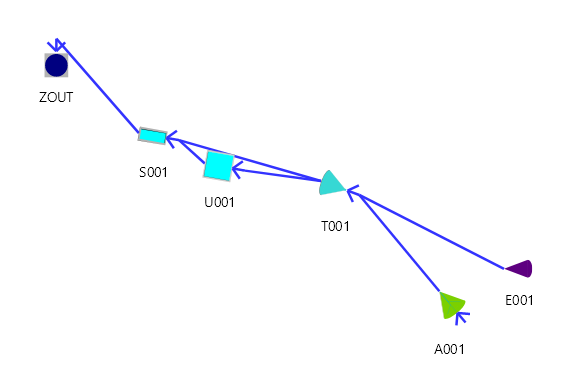 Flow Network Setup with Connected System Elements
|


Preparing the Model Input & Forcing Data
| Create Time Series for the Inflow, Precipitation and Temperature |
|
Time Series objects.
|
| Create a Pattern for the Water Demand |
|
The water demand of the fictitious water user in the Getting Started tutorial follows a recurring pattern and will be modeled using a Fixed Annual Pattern. You can find the relative water demand data in the Pattern_RelWaterDemand tab of the demo data Excel-File: Demo_data.xlsx. To create a new Annual Pattern:1.In the Scenario Tree, expand: 2.Right-click Annual Pattern. 3.In the context menu, click New Pattern. 4. In the pop-up window, enter a description, for example: Rel. Water Demand. 5.Click Add. ✅ A new Fixed Annual Pattern named Rel. Water Demand appears under Shared Components ⮕ Patterns ⮕ Annual Pattern. To access and edit the values of the Pattern:1.Right-click the Pattern Rel. Water Demand. 2.In the context menu, click Show Pattern. ✅ The Function Editor at the bottom of the screen will now display: •A table of monthly values on the left •A graphical view on the right ✅ By default, all twelve monthly values are set to 0. To copy the Pattern from Excel:
1.Open Demo_data.xlsx in Excel. 2.In the Pattern_RelWaterDemand tab, copy the Pattern (including the header). 3.Return to the Function Editor in Talsim, with Rel. Water Demand (Annual Pattern) open, and make sure that January is marked with the > symbol. 4.In the Function Editor toolbar (left side): oClick Paste oClick Save ✅ The values of the Pattern are now copied from Excel and displayed in both the table and the graph.
|


|
Evaporation data for the Sub-Basin is not provided as a time series in this tutorial. Instead, evaporation will be calculated using an Evaporation Component, which estimates potential evaporation based on other meteorological parameters. Talsim offers four different methods to compute evaporation. For this tutorial, we’ll use the Blaney-Criddle method, which requires the least input data. It calculates potential evaporation using: •Air temperature (provided by the Sub-Basin), and •Possible sunshine duration, which is automatically derived from the latitude. Therefore, the only additional parameter you need to provide is the latitude of the Sub-Basin. To create a new Evaporation Component:1.In the Scenario Tree, expand: 2.Right-click Evaporation. 3.In the context menu, click Add item. 4.In the pop-up window, specify a name, for example: Blaney_Criddle_DA. 5.Click Add. ✅ A new Evaporation Component named Blaney_Criddle_DA appears under Shared Components ⮕ Evaporation. To configure the Evaporation Component:1.Right-click the Evaporation Component Blaney_Criddle_DA. 2.In the context menu, click Properties. 3.In the Property Grid, locate Calculation method. 4.From the drop-down list, select Blaney Criddle. 5.For the property Latitude [°], enter: 49.85. ✅ The Evaporation Component Blaney_Criddle_DA is now configured.
|
Configuring the System Elements
| Configure the Point Source (Eastern inflow) |
|
The Point Source represents the eastern inflow to the hydro dam and serves as a source of discharge into the system. The corresponding Time Series for the inflow has already been prepared (see Create Time Series). The next step is to assign this Time Series to the Point Source so it can be used during simulation. To connect the prepared Time Series to the Point Source:1.On the map, double-click the Point Source to open its properties 2.In the Property Grid, under the section Discharge [m³/s] set the Input Method to Time Series. 3.In the input field next to Time Series, click Select Time Series , then click the ... button. 4.In the context menu, click Browse Time Series. 5.In the Time Series Manager pop-up window, locate the Name column on the left of the table. 6.Expand Time Series ⮕ Getting Started Tutorial. 7.Click the Time Series Eastern_Inflow and click the button Select. ✅ The Eastern_Inflow Time Series is now connected to the Point Source.
|

|
To simulate how rainfall is transformed into runoff within a Sub-Basin using the Soil Moisture Method, Talsim requires information about soils and land use. This process is based on the concept of Hydrological Response Units (HRUs) — areas within a Sub-Basin that share the same soil and land use properties. These units are assumed to behave similarly from a hydrological perspective and are treated as one unit, regardless of their spatial location. In Talsim, soil and land use data are managed as Shared Components, allowing multiple Sub-Basins to use the same definitions. For soil configuration, two components are needed: •Soil Texture – defines physical properties such as porosity, field capacity, and wilting point. •Soil Type – describes the layering of different textures and the thickness of each layer. In this tutorial, you will learn how to create and manage these components manually within Talsim. For simplicity, we assume that the Sub-Basin is covered by a uniform soil and land use. Therefore, only one Soil Texture, one Soil Type, and one Land Use component will be created.
To create a new Soil Texture:1.In the Scenario Tree, expand: 2.Right-click Soil Textures. 3.In the context menu, click Add item. 4.In the pop-up window: o From the Soil Texture Type drop-down-list, select: Sand. oIn the Name field, enter a name, for example: Su3. 5.Click Add. ✅ A new Soil Texture component named Su3 appears under Shared Components ⮕ Soils and Land Uses ⮕ Soil Textures.
To configure the Soil Texture:1.In the Scenario Tree, under Soil Textures, double-click Su3. 2.In the Property Grid, from the Texture Preset drop-down list, select Su3. ✅ The Soil Texture Component Su3 is now configured. Its physical properties are automatically set to the preset values for Su3 (~sandy loam).
To create a new Soil Type:1.In the Scenario Tree, expand: 2.Right-click Soil Types. 3.In the context menu, click Add item. 4.In the pop-up window, specify a name, for example: DeepSandySoil. 5.Click Add. ✅ A new Soil Type component named DeepSandySoil appears under Shared Components ⮕ Soils and Land Uses ⮕ Soil Types. To configure the Soil Type:1.In the Scenario Tree, under Soil Textures, double-click DeepSandySoil. 2.In the Property Grid, under the Layers section: oFrom the Layer 1 drop-down list, select the prepared Soil Texture: Su3. oIn the Layer thickness 1 field, enter the layer thickness in meter: 10. ✅ The Soil Type Component DeepSandySoil is now configured. To create a new Land Use:1.In the Scenario Tree, expand: 2.Right-click Land Uses. 3.In the context menu, click Add item. 4.In the pop-up window, specify a name, for example: Forest. 5.Click Add. ✅ A new Land Use component named Forest appears under Shared Components ⮕ Soils and Land Uses ⮕ Land Uses. To configure the Land Use:1.In the Scenario Tree, under Land Uses, double-click Forest. 2.In the Property Grid, under the Plants section, set: oRoot Depth [m]: 1.5 oPlant Coverage [%]: 93 oLeaf Area Index [-]: 10 ✅ The Land Use Component Forest is now configured. |
| Configure the Sub-Basin (Catchment) |
|
The Sub-Basin represents the southern catchment area of the hydro dam. Unlike the eastern inflow, there is no discharge time series available at its outlet. Instead of using a Point Source, this discharge is modeled using a Sub-Basin element, which functions as a rainfall-runoff model. In this tutorial, we use the Soil Moisture Method to compute runoff generation within the Sub-Basin. This method is based on the concept of Hydrological Response Units (HRUs) — areas within the catchment that share the same soil and land use characteristics. These units are assumed to exhibit similar hydrological behavior and are treated collectively, regardless of their exact location within the Sub-Basin. To define the HRUs, the Sub-Basin is linked to previously prepared Soil and Land Use Components. If you haven’t created these yet, refer to the section Preparing Soil and Land Use Components. The meteorological input required for the rainfall-runoff simulation — precipitation, temperature, and evaporation — has already been prepared in the sections Creating Time Series and Creating an Evaporation Component. This section explains how to configure the Sub-Basin, assign relevant parameters, connect the required meteorological inputs, and link soil and land use definitions to enable the simulation of catchment runoff. All the configuration steps are either done directly in or start from the Property Grid. To open the properties of the Sub-Basin in the Property Grid:1.On the map, double-click the Sub-Basin to open its properties ✅ The Property Grid opens and displays the properties of the Sub-Basin. To connect the Precipitation Time Series:1.In the Property Grid, locate the section Simulation Precipitation. 2.In the input field next to Precipitation Time Series, click Select Time Series , then click the ... button. 3.In the context menu, click Browse Time Series. 4.In the Time Series Manager pop-up window, locate the Name column on the left of the table. 5.Expand Time Series ⮕ Getting Started Tutorial. 6.Click the Time Series Precipitation and click the button Select. ✅ The Precipitation Time Series is now connected to the Sub-Basin. To connect the Temperature Time Series:1.In the Property Grid, under the Simulation Temperature section, set the Temperature Input Method to Time Series. 2.In the input field next to Temperature Time Series, click Select Time Series , then click the ... button. 3.In the context menu, click Browse Time Series. 4.In the Time Series Manager pop-up window, locate the Name column on the left of the table. 5.Expand Time Series ⮕ Getting Started Tutorial. 6.Click the Time Series Temperature and click the button Select. ✅ The Temperature Time Series is now connected to the Sub-Basin. To connect the Evaporation Component:1.In the Property Grid, under the Simulation Evaporation section, set the Evaporation Input Method to Evaporation Component. 2.From the Select Evaporation Method drop-down list, select Blaney_Criddle_DA. ✅ The Blaney_Criddle_DA Evaporation Component is now connected to the Sub-Basin. ✅ All the required meteorological input is now connected to the Sub-Basin. To set the topography:1.In the Property Grid, under the Topography section, set:
✅ The topography is now set. ✅ In the section Retention - Surface Flow, parameters for the routing of surface runoff have been automatically calculated.
To set the calculation method for the runoff generation:1.In the Property Grid, locate the Calculation Method section. 2.From the Discharge Calculation Method drop-down list, select Soil Moisture. ✅ The Soil Moisture Method is set for the computation of the runoff generation. ✅ Additional fields for defining the HRUs and setting the subsurface runoff concentration parameter appear under the section Calculation Method. To define Hydrological Response Units:1.In the Property Grid, under the Calculation Method section: In the field next to Hydro Response Unit, click the button Show HRUs. 2.In the Bulk Editing pop-up window, in the table on the right, edit the first row, as follows:
3.Close the Bulk Editing window. ✅ The single Hydrological Response Unit needed for this tutorial is now defined.
To set the parameters for the runoff concentration of the interflow and baseflow:1.In the Property Grid, under the Calculation Method section, set:
✅ The parameter for the runoff concentration of the interflow and baseflow are now set. ✅ The Sub-Basin is configured.
|
| Configure the Storage Element (Hydro Dam) |
|
The Storage Element in this tutorial represents a hydro dam. Its main functions are to supply water to a user, balance downstream runoff, maintain minimum flows during droughts, and protect downstream areas from flooding. A basic setup of the Storage Element requires two components: •a Storage–Elevation Curve, and •at least one Release. The Storage–Elevation Curve defines the relationship between storage volume, water level, and surface area, representing the geometry of the reservoir. This relationship is specified in a table covering the full range from empty to full storage. The highest entry in the table determines the maximum storage capacity. You can find the Storage Elevation Curve table in the T001_StorageElevationCurve tab of the demo data Excel-File: Demo_data.xlsx. A Release defines when and how much water is released from the Storage to the downstream Element. In this tutorial we will define three releases: •Spillway •Standard Release •Water Supply The Spillway in our tutorial is uncontrollable. It is defined by a release function that relates storage level (volume) to outflow, also entered in tabular form. The first non-zero release value in this table, together with the Storage–Elevation Curve, determines the elevation of the Spillway. You can find the Spillway Release table in the T001_QH1_Spillway tab of the demo data Excel-File: Demo_data.xlsx. The complete configuration of the other controllable Releases of the Storage Element, implementing the operating plan, requires additional entities such as System States. This will be explained later in detail in the separate chapter Defining Operating Rules. To configure the Storage Element in the Property Grid:1.On the map, double-click the Storage Element to open its properties 2.In the Property Grid, under the Simulation section, set:
3.In the Property Grid, under the Meta section: ✅ The Function Editor at the bottom of the screen will now display: •A table to enter the values of the Storage Elevation Curve on the left •A graphical view on the right To copy the Storage Elevation Curve from Excel:1.Open Demo_data.xlsx in Excel. 2.In the T001_StorageElevationCurve tab, copy the data (with or without the header). 3.Return to the Function Editor in Talsim, with T001 (Storage Elevation Curve) open, and make sure that the first row is marked with the > symbol. 4.In the Function Editor toolbar (right side): oClick Paste oClick Save ✅ The values of the Storage Elevation Curve are now copied from Excel and displayed in both the table and the graph. To create a Release for the spillway:1.In the Scenario Tree, expand: 2.Right-click Releases. 3.In the context menu, click New. 4.In the pop-up window, from the Storage Usage Type drop-down-list, select: Spillway. 5.Click Create. ✅ A new Release with the key QH1 appears under Elements ⮕ Storage ⮕ T001 (Hydro Dam) ⮕ Releases.
To create the two remaining Releases:•Repeat the same procedure as for the spillway for the three remaining Releases, selecting the following Storage Usage Types:
✅ Three new Releases with the keys QR1 and QW1 appear under Elements ⮕ Storage ⮕ T001 (Hydro Dam) ⮕ Releases. ✅ All required Releases are created. To configure the Spillway Release:1.In the Scenario Tree, under Releases, double-click QH1. 2.In the Property Grid, under the Meta section: oFrom the Outflow To drop-down list, select: S001. 3.Under the Calculation section: oFrom the Calculation Method drop-down list, select: Function Rule. oFrom the Type drop-down list, select: Function. oIn the field next to Show Function, click the button Show Function. ✅ The Function Editor at the bottom of the screen will now display: •A table to enter the values relating Volume to Release on the left •A graphical view on the right To copy the Spillway Release Function from Excel:1.Open Demo_data.xlsx in Excel. 2.In the T001_QH1_Spillway tab, copy the data (with or without the header). 3.Return to the Function Editor in Talsim, with QH1 (Storage Release) open, and make sure that the first row is marked with the > symbol. 4.In the Function Editor toolbar (left side): oClick Paste oClick Save ✅ The values of the Spillway Release are now copied from Excel and displayed in both the table and the graph. ✅ The Spillway Release is configured. ✅ The basic set-up of the Storage Element is completed (The definition of the Operating Rules and the complete configuration of the missing Releases follows in the chapter Defining Operating Rules). |
| Configure the Transport Reach (Little Stream) |
|
The Transport Reach in this tutorial represents a small stream located downstream of the hydro dam and the water user. It is modeled using the Open Channel method. In this approach, the travel time of water through the Transport Reach depends on the geometry of the streambed and its roughness. The geometry is approximated by a single cross-sectional profile of the stream and its floodplain, along with the total stream length. You can find the Profile Function table in the S001_ProfileFunction tab of the demo data Excel-File: Demo_data.xlsx. To configure the Transport Reach in the Property Grid:1.On the map, double-click the Transport Reach to open its properties 2.In the Property Grid, under the Properties section, set:
3.In the Property Grid, under the Calculation Method section, set:
4.In the Property Grid, under the Calculation Method section: ✅ The Function Editor at the bottom of the screen will now display: •A table to enter the values of the profile function on the left •A graphical view on the right To copy the Profile Function from Excel:1.Open Demo_data.xlsx in Excel. 2.In the S001_ProfileFunction tab, copy the data (with or without the header). 3.Return to the Function Editor in Talsim, with S001 (Profile Function) open, and make sure that the first row is marked with the > symbol. 4.In the Function Editor toolbar (left side): oClick Paste oClick Save ✅ The values of the Profile Function are now copied from Excel and displayed in both the table and the graph ✅ The Transport Reach is configured. |
| Configure the Consumer (Water user) |
|
The Consumer in this tutorial represents a water user with a seasonally varying but annually recurring demand. All inflow to the Consumer is fully withdrawn, with no return flow to the system. The demand pattern has already been prepared as the Annual Pattern Rel. Water Demand (see section Create A Pattern). To configure the Consumer:1.On the map, double-click the Consumer to open its properties 2.In the Property Grid, under the Behavior section, set:
3.Under the Demand section, set:
✅ The Consumer is configured.
|
Defining Operating rules for the hydro dam
|
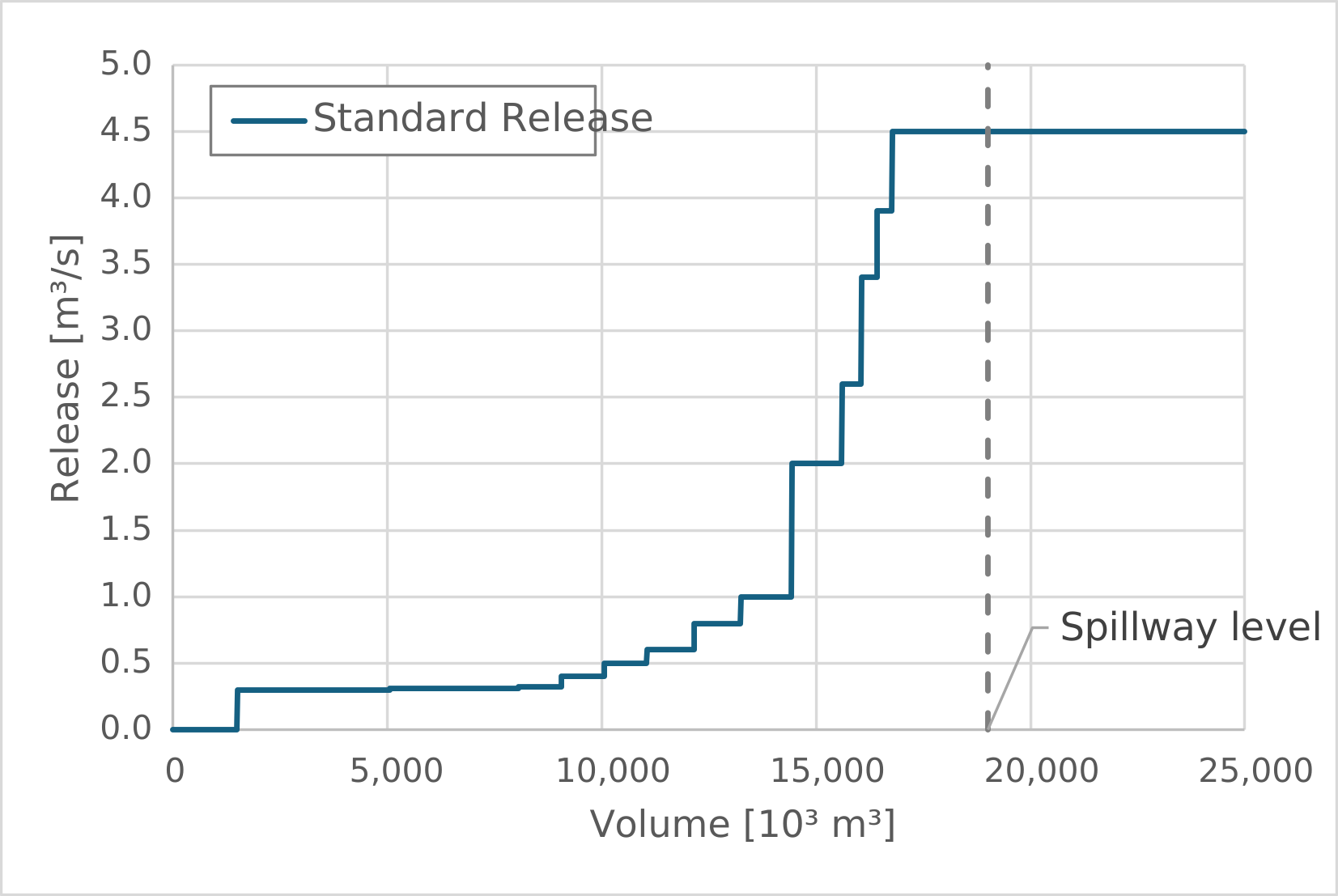 Function for the Standard Release The Standard Release of the hydro dam serves several purposes: balancing downstream runoff, maintaining minimum flows during droughts, and protecting downstream areas from flooding. The rule is defined to ensure a minimum release once the storage exceeds a defined threshold. As storage continues to rise, the release increases stepwise until it reaches the maximum flow that can be safely conveyed downstream without causing damage. This maximum is reached below the spillway level, leaving an upper storage zone reserved for flood retention. This rule is straightforward, as it depends only on the storage level and not on external states. The Standard Release has already been created in the chapter Configure the Storage Element. In this section, you will configure its operating rule. To configure the Standard Release in the Property Grid:1.In the Scenario Tree, expand: 2.Double-click QR1. 3.In the Property Grid, under the Meta section: oFrom the Outflow To drop-down list, select S001 4.Under the Calculation section: oThe Calculation Method drop-down list should already show Function Rule. oThe Type drop-down list should already show Function. oIn the field next to Show Function, click the button Show Function. ✅ The Function Editor at the bottom of the screen will now display: •A table to enter the values relating Volume to Release on the left •A graphical view on the right To copy the Standard Release Function from Excel:1.Open Demo_data.xlsx in Excel. 2.In the T001_QR1_Function tab, copy the data (with or without the header). 3.Return to the Function Editor in Talsim, with QR1 (Storage Release - Function) open, and make sure that the first row is marked with the > symbol. 4.In the Function Editor toolbar (left side): oClick Paste oClick Save ✅ The values of the Standard Release Function are now copied from Excel and displayed in both the table and the graph. ✅ The Standard Release is configured.
|
|
The Water Supply Release delivers the demand of the water user. It has the highest priority and should operate even at very low storage levels. Unlike the Standard Release, which can be defined directly as a function of storage, the Water Supply Release must respond to an external state. Therefore, we first create an Element State representing the demand of the Consumer and then connect this state to the release. The Storage–Release function still needs to be defined. In this case, the Water Supply Release should be active across the entire storage range. To achieve this, we set the Y-values of the Storage–Release function to 1 from the minimum storage level upwards.
To create the Element State of the demand of the Consumer:1.On the map, right-click the Consumer 2.In the context menu, click Add Element State. 3.In the pop-up window: oThe first drop-down list should already show U001 (WaterUser). oIn the second drop-down list, make sure Demand_net is selected. 4.Click Add then click OK. ✅ The State [U001] BED: Demand_net is created and added to the map on top of the Consumer
To configure the Demand State:1.On the map, double click the Demand_net State, to open its properties 2.In the Property Grid, under the Attributes section: oTemporal Reference should already show Current Value oCheck Output Time Series. 3.In the Property Grid, under the Function section: oTransform by Function should already be Unchecked ✅ The State [U001] BED: Demand_net is configured using the default options and enabling the output of result time series. To configure the Water Supply Release in the Property Grid:1.In the Scenario Tree, expand: 2.Double-click QW1. 3.In the Property Grid, under the Meta section: oFrom the Outflow To drop-down list, select U001 4.Under the Calculation section: oFrom the System State drop-down list, select the newly created Element State [U001] BED: Demand_net oIn the field next to Show Function, click the button Show Function. ✅ The State [U001] BED: Demand_net is connected to the Water Supply Release of the hydro dam. ✅ The Function Editor at the bottom of the screen will now display: •A table to enter the values relating Volume to Release on the left •A graphical view on the right To enter the Release Function, enabling a Release across the entire storage range:1.In the Function Editor, right-click anywhere into the table. 2.In the context menu, click Insert, to insert another row. 3.Enter the following values into the table:
4.In the Function Editor toolbar (left side), click Save ✅ The values are now entered and displayed in both the table and the graph. ✅ The Water Supply Release is now set to deliver the Consumer’s demand, as long as sufficient water is available in the Storage Element.
|

Simulating
|
To run your configured model, you first need to create a Simulation. A Simulation defines the conditions under which your model will be executed. Most importantly, it specifies: •Time step (e.g., daily, hourly) •Simulation period (start and end date & time) Beyond these essentials, a Simulation also holds optional settings such as global initial conditions, calculation options, and output preferences. It includes a Calibration component (used to scale selected parameters during calibration runs) and later stores all results, logs, and any warnings or errors generated during execution. A Scenario may contain multiple Simulations, allowing you to run the same model under different settings — for example, varying time steps, calibration parameters, or output configurations. In this section, you will learn how to create and configure a Simulation and prepare it for execution. To create a Simulation:1.In the Scenario Tree, under Getting Started, right-click Simulations. 2.In the context menu, click Add Simulation. 3.In the pop-up window, in the Name field, enter a name, for example: Sim1. 4.Click Add. ✅ A new Simulation with the icon
To configure the Simulation:
1.In the Scenario Tree, under Simulations, double-click Sim1. 2.In the Property Grid, under the Simulation section: oIn the Simulation Start field, enter the starting date and time of the simulation in the correct format, e.g.: 01/08/2004 00:00. oIn the Simulation End field, enter the end date and time of the simulation in the correct format, e.g.: 01/11/2021 00:00. oIn the Time Step [min] field, enter the time step of the simulation: 60. ✅ The Simulation Sim1 is now configured.
|
 and the name

|
Once a simulation has been created and configured, it can be executed. The run is started from the Talsim5 GUI, but the actual computation is carried out in the background by the Talsim Engine. When you start the run, Talsim prompts you to select the Engine version to use — typically the newest one, unless you need an older version to ensure comparability with previous simulations. To run the Simulation:1.In the Scenario Tree, under Simulations, right-click Sim1. 2.In the Start Simulation pop-up window: oThe Scenario drop-down list should already show Getting Started. oThe Simulation drop-down list should already show Sim1. oFrom the Engine Version drop-down list, select the latest Talsim Engine, e.g: 4.1.12. oUncheck Copy Simulation. 3.Click Start Simulation. ✅ The Talsim Engine runs the simulation in a separate command-line window, independently of the Talsim5 GUI. ✅ Once the simulation has finished, Talsim5 displays a pop-up message: Simulation successful! ✅ In the Property Grid, the icon next to the Simulation Sim1 has changed to green, indicating that the Simulation was successful ✅ The Simulation Output view opens in the bottom panel, with the Messages tab showing the simulation log.
|
Accessing, Visualizing & Analyzing the Results
|
When a simulation is executed, Talsim writes the result files to disk. These files contain the simulated time series, metadata, and log information and can be accessed outside the Talsim GUI for inspection or further post-processing.
Where result files are storedResult Files are written to the Demo_data folder, which is located in the directory where your Talsim project is stored. For each simulation run, Talsim creates a compressed archive file with the simulation’s 8-digit Simulation ID as its name and the extension .WLZIP, for example: 00000001.WLZIP The WLZIP file is a standard ZIP archive and can be extracted using any file archiver that supports the ZIP format. What the result archive containsFor this tutorial, the following files are created and compressed into the .WLZIP archive when the simulation is run: Result Time Series Tables & Metadata:
Simulation Log Files:In addition to result time series, each simulation produces log files:
These files can be useful for troubleshooting or documenting simulation runs. Additional Result Files:The output of additional result files — such as statistical analyses, balance reports, or detailed results of internal element processes — can be activated in the Simulation’s Property Grid. With the default setting the following additional files are produced:
|
|||||||||||||||||||||||||||||||||||||||||||||||||||||||||

|
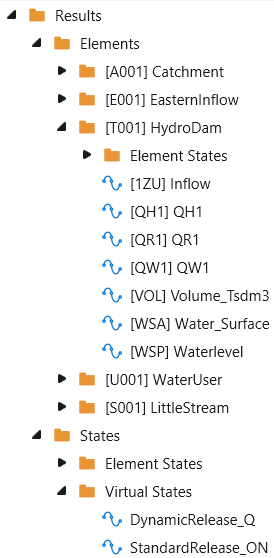 Organization of Result Time Series in the Property Grid Time Series Charts allow you to quickly visualize simulation results directly inside Talsim. You can display multiple time series in the same chart; if they use different units, Talsim automatically adds additional Y-axes. Before you can plot result time series, you must first load the simulation results into the Scenario Tree. To load the Results into the Property Grid:1.In the Scenario Tree, expand: 2.Right-click Results. 3.In the context menu, click Load Results. ✅ In the Property Grid, the Result folder now is expandable. ✅ Inside you can find the Result Time Series of all the Elements and States, which had the Property Output Time Series checked, when simulating.
To display a Result Time Series in a Chart:1.In the Scenario Tree, expand: 2.Navigate to the Time Series you want to display, expanding e.g. Elements ⮕ [T001] Hydro Dam . 3.Double-click [VOL] Volume Tsdm3. ✅ In the Central Panel, a new tab with the Time Series Chart of the result time series T001_VOL appears. 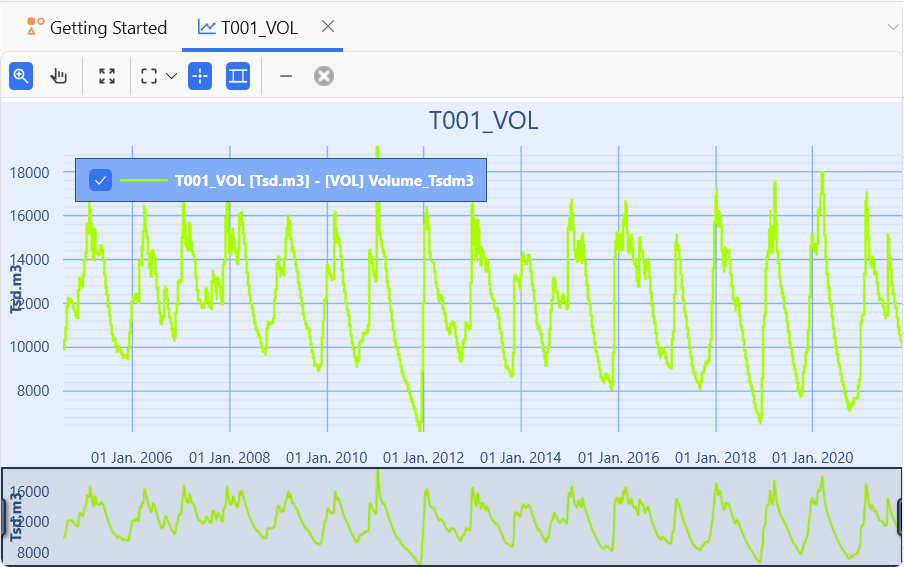 Time Series Chart of the simulated volume of the hydro dam T001
To add more Time Series to the Chart:1.In the Scenario Tree, expand: 2.Drag and drop the Time Series [QR1] QR1 to the Chart in the Central Panel. 3.Drag and drop the Time Series [QH1] QH1 to the Chart in the Central Panel. ✅ The Time Series T001_QR1 and T001_QH1 are added to the Time Series Chart T001_VOL. ✅ A second y-axis with the unit m3/s has automatically been created.
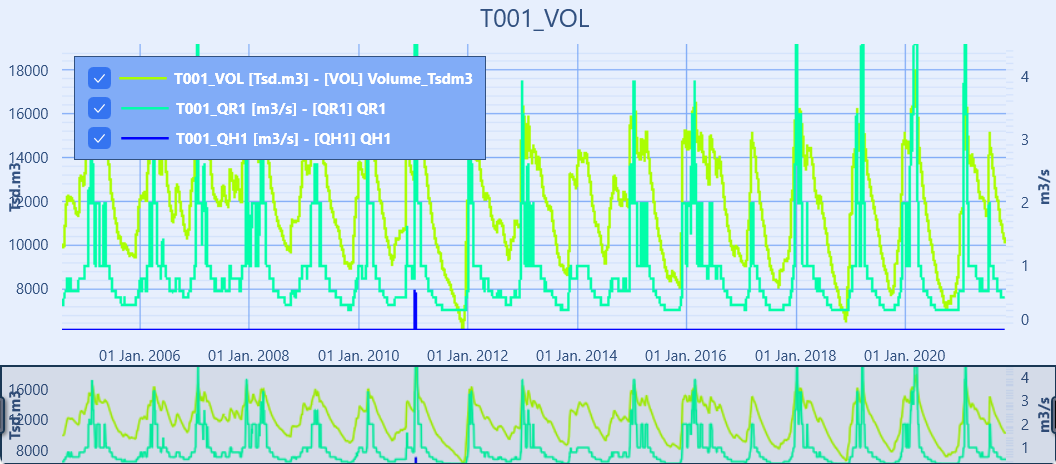 Time Series Chart of the simulated volume, standard and spillway release of the hydro dam T001
To zoom in:1.Click and drag in the Time Series Chart to draw a selection box. 2.Release the mouse button to zoom to the selected area.
To zoom out to extent:1.Double-click the Time Series Chart. |
 .
.
|
Currently there is no tool to statistically analyze Time Series in Talsim5 directly, but there is a powerful external software to do so: BlueMWave can directly read both the Talsim Output files in ASCII / binary format (*.WEL or *.WBL), and the Sydro binary Time Series format (*.bin) and offers extended options to visualize, statistically analyze and export time series to different formats.
|
Created with Help+Manual 9 and styled with Premium Pack Version 5 © by EC Software
