This tutorial builds on the model from the Getting Started Tutorial — a simple example that includes the most commonly used elements: Point Source, Sub-Basin, Transport Reach, and Storage.
In this tutorial, the model is extended with a more complex operating plan, using advanced features such as time-dependent functions and Virtual States to show how seasonal flow requirements and interdependent operating rules can be implemented.
You will learn how to:
•Copy an existing scenario
•Create a more sophisticated operating plan using:
oVirtual States
oPool-based Plan
oXYZ Time-Dependent Function
•Run simulations
•Visualize and interpret the results
The database containing the fully configured tutorial models can be downloaded here:
⏳ Coming soon: Demo.zip
You can follow this tutorial in two ways:
•Step-by-step: In the demo project, start from the scenario Getting Started and build everything yourself by following the instructions and using the provided data (Demo_data.xlsx).
•By exploring the finished model: In the demo project, open the scenario Operating Rules to explore specific parts of the workflow. This is useful if you want to repeat or review selected steps without rebuilding the entire model.
🚧 |
This section is still under construction. |
Preparing the Scenario
Copy the Scenario Getting Started
Rename and activate the Scenario (Operating Rules)
Configuring the System Elements
 | Configure the Storage Element (Hydro Dam) |
|
The Storage Element representing a hydro dam was already created in the Getting Started Tutorial. It was configured to serve the following primary functions: •supplying water to a user, •balancing downstream runoff, •maintaining minimum flows during droughts, and •protecting downstream areas from flooding. In this tutorial, the hydro dam should additionally provide environmental flows in late spring, whenever this is possible without jeopardizing its primary functions. To achieve this, we will create an additional Release: Dynamic Release In this section we will create the Release. Its detailed configuration will be explained in the separate chapter Defining Operating Rules. To create the Dynamic Release:1.In the Scenario Tree, expand: 2.Right-click Releases. 3.In the context menu, click New. 4.In the pop-up window, from the Storage Usage Type drop-down-list, select: DynamicRelease. 5.Click Create. ✅ A new Release with the key QD1 appears under Elements ⮕ Storage ⮕ T001 (Hydro Dam) ⮕ Releases. ✅ All required Releases are created:
|
Defining Operating rules for the hydro dam
|
The Standard Release of the hydro dam serves several purposes: balancing downstream runoff, maintaining minimum flows during droughts, and protecting downstream areas from flooding. In the Getting Started Tutorial the Standard Release was already configured using a simple quasi step-wise Release function: The rule ensured a minimum release once the storage rose above a threshold. As storage increased further, the release increased step by step until it reached the maximum flow that can still be safely conveyed downstream without causing damage. At that point, storage was preserved to buffer incoming floods. This simple rule is constant throughout the year and does not account for the seasonally varying flow regime. In this tutorial, we refine this rule by introducing seasonal priorities: •winter: flood protection is emphasized •summer: low flow support and saving water for water supply takes precedence To achieve this, we implement the rule as a step-wise Pool Based Plan, a time-dependent function of storage.
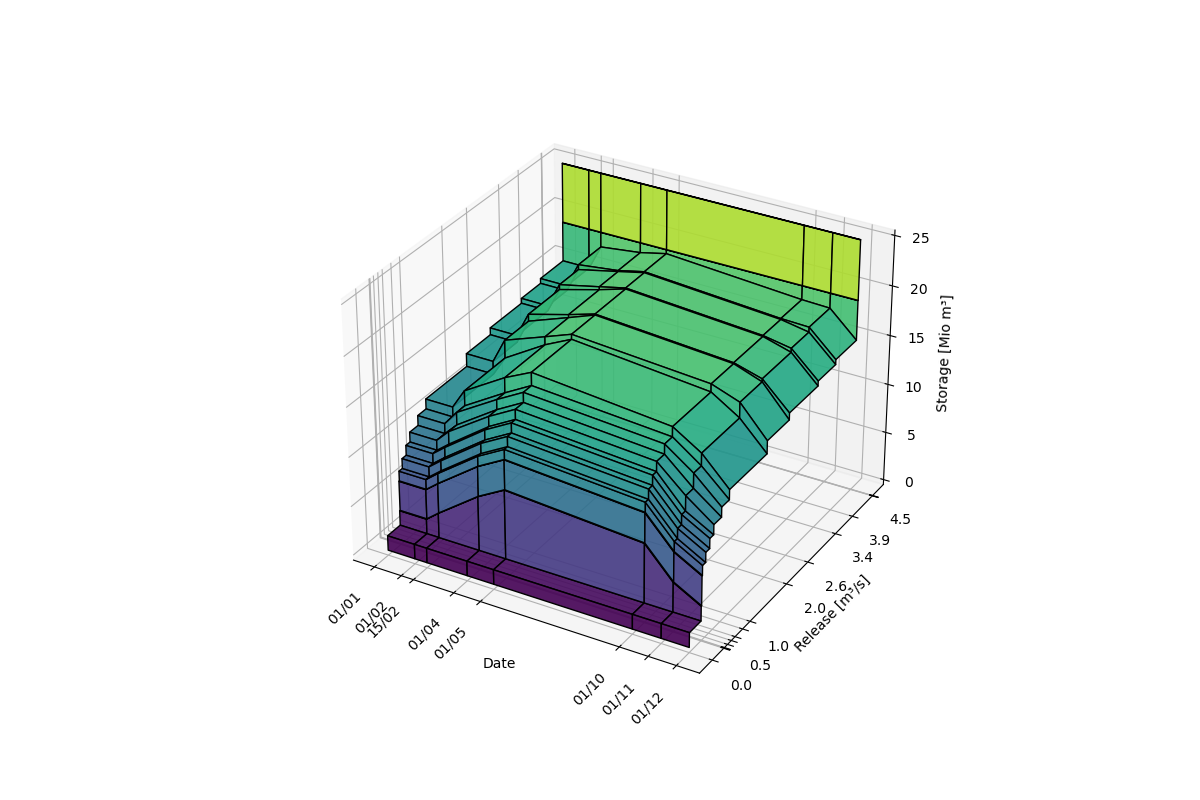 3D view of the Pool-Based Plan for the Standard Release, interpolated in time and interpreted stepwise in the storage–release plane.
In this section, we modify the existing Standard Release by turning it into a seasonally varying rule using an Element State of the Volume as a Pool-Based Plan. Note: in this section the Standard Release is configured to work on its own. In the next section, Configure the Dynamic Release, we will adjust this rule further to account for the interaction between the Standard Release and the Dynamic Release.
To create an Element State of the Volume:1.On the map, right-click the Storage Element 2.In the context menu, click Add Element State. 3.In the pop-up window: •The first drop-down list should already show T001 (HydroDam). •In the second drop-down list, make sure Volume_Tsdm3 is selected. 4.Click Add then click OK. ✅ The State [T001] VOL: Volume_Tsdm3 is created and added to the map on top of the Storage Element To configure the Element State StandardRelease PBP:
1.On the map, double click the Volume State, to open its properties 2.In the Property Grid, under the Meta section: oEnter a Name that describes the State after transformation: StandardRelease PBP. 3.Under the Attributes section: oCheck Output Time Series. oFrom the Temporal Reference drop-down list, select Value of the i-th Previous Time Step. 4.Under the Additional Attributes section: oFor Time Step Offset i [-], enter: 1. 5.Under the Function section: oCheck Transform by Function. oUncheck Interpolate Points. oFrom the Function Type drop-down list, select Pool Based Plan. oIn the field next to Show Function, click the button Show Function. ✅ The Function Editor at the bottom of the screen will now display: •A table to enter the values of the Pool-Based Plan relating Volume to Release for different Dates on the left •A graphical view on the right To copy the Pool-Based Plan from Excel:1.Open Demo_data.xlsx in Excel. 2.In the StandardRelease PBP tab, copy the data (with the header). 3.Return to the Function Editor in Talsim, with [T001] VOL: StandardRelease PBP (System State - PoolBasedPlan) open, and make sure that the first row is marked with the > symbol.. 4.In the Function Editor toolbar (left side): oClick Paste Entire Pool-Based Plan oClick Save ✅ The values of the Transformation function are now copied from Excel and displayed in both the table and the graph. ✅ The Element State StandardRelease PBP is configured.
To modify the configuration of the Standard Release QR1 in the Property Grid:1.In the Scenario Tree, expand: 2.Double-click QR1. 3.In the Property Grid, under the Calculation section: oFrom the System State drop-down list, select the newly created Element State StandardRelease PBP oIn the field next to Show Function, click the button Show Function. ✅ The State StandardRelease PBP is connected to the Standard Release of the hydro dam. ✅ The Function Editor at the bottom of the screen will now display: •A table to enter the values relating Volume to Release on the left •A graphical view on the right To modify the Release Function, enabling a Release across the entire storage range:1.In the Function Editor toolbar (right side), click Delete All 2.Enter the following values into the table:
3.In the Function Editor toolbar (right side), click Save ✅ The values are now entered and displayed in both the table and the graph. ✅ The Standard Release now follows the season- and storage-dependent rule defined in the Pool-Based Plan.
Note: if you look at the final model, you will not find the Element State StandardRelease PBP directly connected to the Standard Release, but the Virtual State StandardRelease_Q, which includes the State StandardRelease_ON. This State is used to switch the Standard Release off, in case the Dynamic Release is active. This will be explained in detail in the chapter Configure the Dynamic Release.
|





 .
.
|
The Dynamic Release is designed to provide a more natural flow regime at specific times of the year (e.g., during fish spawning), but only when the primary objectives of the hydro dam — flood protection and water supply — are already secured. For this reason, the Dynamic Release should only be active: •within a medium range of storage, •during a defined time period, and •in proportion to the inflow to the reservoir. Whenever the Dynamic Release is active, the Standard Release must be deactivated. To implement these rules, we need to prepare several Element and Virtual States and connect them to the Dynamic Release and the Standard Release, respectively:
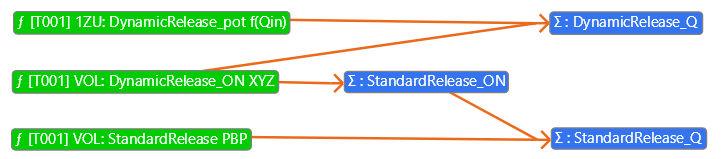 Connections of States in the Operating Rules Tutorial
To create an Element State of the Inflow:1.On the map, right-click the Storage Element 2.In the context menu, click Add Element State. 3.In the pop-up window: oThe first drop-down list should already show T001 (HydroDam). oIn the second drop-down list, select Inflow. 4.Click Add then click OK. ✅ The State [T001] 1ZU: Inflow is created and added to the map on top of the Storage Element To configure the Element State DynamicRelease_pot f(Qin):1.On the map, double click the Inflow State, to open its properties 2.In the Property Grid, under the Meta section: oEnter a Name that describes the State after transformation: DynamicRelease_pot f(Qin). 3.Under the Attributes section: oCheck Output Time Series. 4.Under the Function section: oCheck Transform by Function. oFunction Type should already show Function. oIn the field next to Show Function, click the button Show Function. ✅ The Function Editor at the bottom of the screen will now display: •A table to enter the values transforming the Inflow into a potential dynamic release on the left •A graphical view on the right To copy the Transformation Function from Excel:1.Open Demo_data.xlsx in Excel. 2.In the DynamicRelease_pot f(Qin) tab, copy the data (with or without the header). 3.Return to the Function Editor in Talsim, with [T001] 1ZU: DynamicRelease_pot f(Qin) (System State - CapacityCurve) open, and make sure that the first row is marked with the > symbol. 4.In the Function Editor toolbar (left side): oClick Paste oClick Save ✅ The values of the Transformation function are now copied from Excel and displayed in both the table and the graph. ✅ The Element State DynamicRelease_pot f(Qin) is configured. To create an Element State of the Volume:1.On the map, right-click the Storage Element 2.In the context menu, click Add Element State. 3.In the pop-up window: •The first drop-down list should already show T001 (HydroDam). •In the second drop-down list, make sure Volume_Tsdm3 is selected. 4.Click Add then click OK. ✅ The State [T001] VOL: Volume_Tsdm3 is created and added to the map on top of the Storage Element To configure the Element State DynamicRelease_ON XYZ:
1.On the map, double click the Volume State, to open its properties 2.In the Property Grid, under the Meta section: oEnter a Name that describes the State after transformation: DynamicRelease_ON XYZ. 3.Under the Attributes section: oCheck Output Time Series. oFrom the Temporal Reference drop-down list, select Value of the i-th Previous Time Step. 4.Under the Additional Attributes section: oFor Time Step Offset i [-], enter: 1. 5.Under the Function section: oCheck Transform by Function. oUncheck Interpolate Points. oFrom the Function Type drop-down list, select XYZ Time Dependent. oIn the field next to Show Function, click the button Show Function. ✅ The Function Editor at the bottom of the screen will now display: •A table to enter the values of the XYZ Time Dependent function on the left, defining the storage range & seasonal window, when the dynamic release is allowed •A graphical view on the right To copy the Transformation Function for DynamicRelease_ON XYZ from Excel:1.Open Demo_data.xlsx in Excel. 2.In the DynamicRelease_ON XYZ tab, copy the data (with or without the header). 3.Return to the Function Editor in Talsim, with [T001] VOL: DynamicRelease_ON XYZ (System State - XYZ Time Dependent) open. 4.In the Function Editor toolbar (left side): oClick Paste Including Date oClick Save ✅ The values of the Transformation function are now copied from Excel and displayed in both the table and the graph. ✅ The Element State DynamicRelease_ON XYZ is configured.
To create the Virtual States:1.In the Toolbar above the map, locate the button Add System Virtual State 2.Drag and drop this button, to place a Virtual State on the map. 3.Repeat the second step twice more. ✅ Three new Virtual States have been created and added to the map
To rename the Virtual States:1.On the map, double-click one of the Virtual States to open its properties 2.In the Property Grid, under the Meta section, enter the Name: DynamicRelease_Q 3.Repeat the two steps twice more, entering the following names: oStandardRelease_ON oStandardRelease_Q ✅ The three new Virtual States have been renamed to DynamicRelease_Q, StandardRelease_ON, StandardRelease_Q. To connect the States:1.In the map toolbar, click the Connect/Disconnect Entities button to enter the connection mode 2.Click the Element State DynamicRelease_pot f(Qin), then click one of the Virtual State DynamicRelease_Q. 3.Click the Element State DynamicRelease_ON XYZ, then click one of the Virtual State DynamicRelease_Q. 4.Click the Element State DynamicRelease_ON XYZ, then click the Virtual State StandardRelease_ON. 5.Click the Virtual State StandardRelease_ON, then click the Virtual State StandardRelease_Q. 6.In the map toolbar, click the Select/Move Entities button to return to the select mode ✅ All the connections between the States have been created. Connections of States in the Operating Rules Tutorial To configure the Virtual State DynamicRelease_Q:1.On the map, double-click the Virtual State DynamicRelease_Q to open its properties 2.In the Property Grid, under the Attributes section: oCheck Output Time Series 3.Under the Connections section, in the Operator column of the table: oFrom the drop-down list of the second row, select Multiplication ✅ The Virtual State DynamicRelease_Q is set to multiply the connected Element States, meaning it is either 0, when the DynamicRelease_ON XYZ State is 0 ("OFF") or it takes the value of DynamicRelease_pot f(Qin). ✅ The Virtual State DynamicRelease_Q is configured. To configure the Virtual State StandardRelease_ON:1.On the map, double-click the Virtual State StandardRelease_ON to open its properties 2.Under the Attributes section: oCheck Output Time Series 3.Under the Connections section, in the Operator column of the table: oCheck Transform by Function. oIn the field next to Show Function, click the button Show Function. ✅ The Function Editor at the bottom of the screen will now appear. To enter the Function, switching off Standard Release when Dynamic Release is active:1.In the Function Editor, right-click anywhere into the table. 2.In the context menu, click Insert, to insert another row. 3.Enter the following values into the table:
4.In the Function Editor toolbar (left side), click Save ✅ The values are now entered and displayed in both the table and the graph. ✅ The Virtual State StandardRelease_ON is set to invert DynamicRelease_ON XYZ. ✅ The Virtual State StandardRelease_ON is configured.
To configure the Virtual State StandardRelease_Q:4.On the map, double-click the Virtual State StandardRelease_Q to open its properties 5.In the Property Grid, under the Attributes section: oCheck Output Time Series 6.Under the Connections section, in the Operator column of the table: oFrom the drop-down list of the second row, select Multiplication ✅ The Virtual State StandardRelease_Q is set to multiply the connected States, meaning it is either 0, when the StandardRelease_ON State is 0 ("OFF") or it takes the value of StandardRelease PBP. ✅ The Virtual State StandardRelease_Q is configured. To connect the State StandardRelease_Q to the Standard Release QR1:1.In the Scenario Tree, expand: 2.Double-click QR1. 3.In the Property Grid, under the Calculation section: oFrom the System State drop-down list, select the newly created Virtual State StandardRelease_Q ✅ The State StandardRelease_Q is connected to the Standard Release of the hydro dam, using the same Pool-Based Plan as before, but switching the Standard Release off, whenever the Dynamic Release is active. To configure the Dynamic Release QD1 in the Property Grid:1.In the Scenario Tree, expand: 2.Double-click QD1. 3.In the Property Grid, under the Meta section: oFrom the Outflow To drop-down list, select S001 4.Under the Calculation section: oFrom the System State drop-down list, select the newly created Virtual State DynamicRelease_Q oIn the field next to Show Function, click the button Show Function. ✅ The State DynamicRelease_Q is connected to the Dynamic Release of the Hydro Dam. ✅ The Function Editor at the bottom of the screen will now display: •A table to enter the values relating Volume to Release on the left •A graphical view on the right To enter the Release Function, enabling a Release across the entire storage range:1.In the Function Editor, right-click anywhere into the table. 2.In the context menu, click Insert, to insert another row. 3.Enter the following values into the table:
4.In the Function Editor toolbar (right side), click Save ✅ The values are now entered and displayed in both the table and the graph. ✅ The Dynamic Release is now set to provide a more natural flow regime during the month of May, whenever the Storage level is within a medium range.
|




 .
.



Created with Help+Manual 9 and styled with Premium Pack Version 5 © by EC Software
